


|
In this guide |
Why This Matters
VizMan has rolled out a security patch to the Visitor Form in Account Setup. Every Admin needs to open that screen and save it to switch the patch on. The patch ships automatically with your VizMan update, but it isn't active on your account until an Admin reviews Visitor Form (Admin Access → Account Setup → Visitor Form, step 2) and saves it.
This takes a few minutes and doesn't require changing any fields. Opening the screen, reviewing what's there, and saving is enough to apply the patch. Skip it, and your organization keeps running on its current configuration without the new protections.
Who needs to act: every Admin, on every VizMan account.
If you don't: the new protections stay switched off until someone does this.
What Changed
The patch applies to the Visitor Form inside Account Setup, the screen where Admins control what information a visitor fills in before checking in. Nothing about where to find it has moved. It's still step 2 of the same four-step Set Up Your Account wizard (Organization Details → Visitor Form → Token Settings → Other Settings).
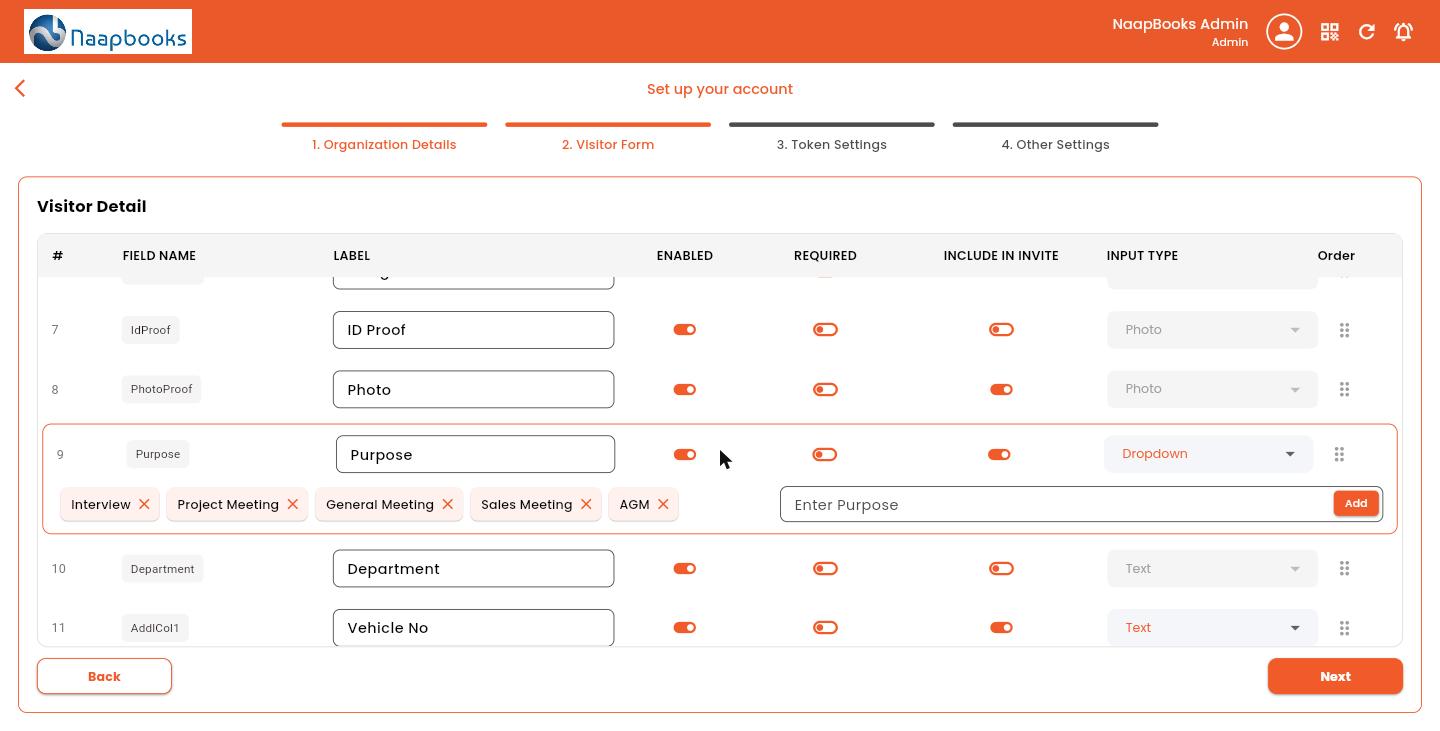
On that screen, each field has its own row with:
- Enabled: whether the field appears on the visitor form at all
- Required: whether a visitor must fill it in to submit the form
- Include in Invite: whether the field also appears on invite-based check-ins
- Input Type: Text, Mobile, Email, Photo, Check Box, or Dropdown / Select
- Order: drag to reorder, subject to the fixed positions covered in the FAQ below
Two things are easy to miss:
- Purpose, and any field set to Dropdown / Select, need their option list configured directly on this screen. Type a value and click Add. A dropdown with no options can't be filled in by a visitor.
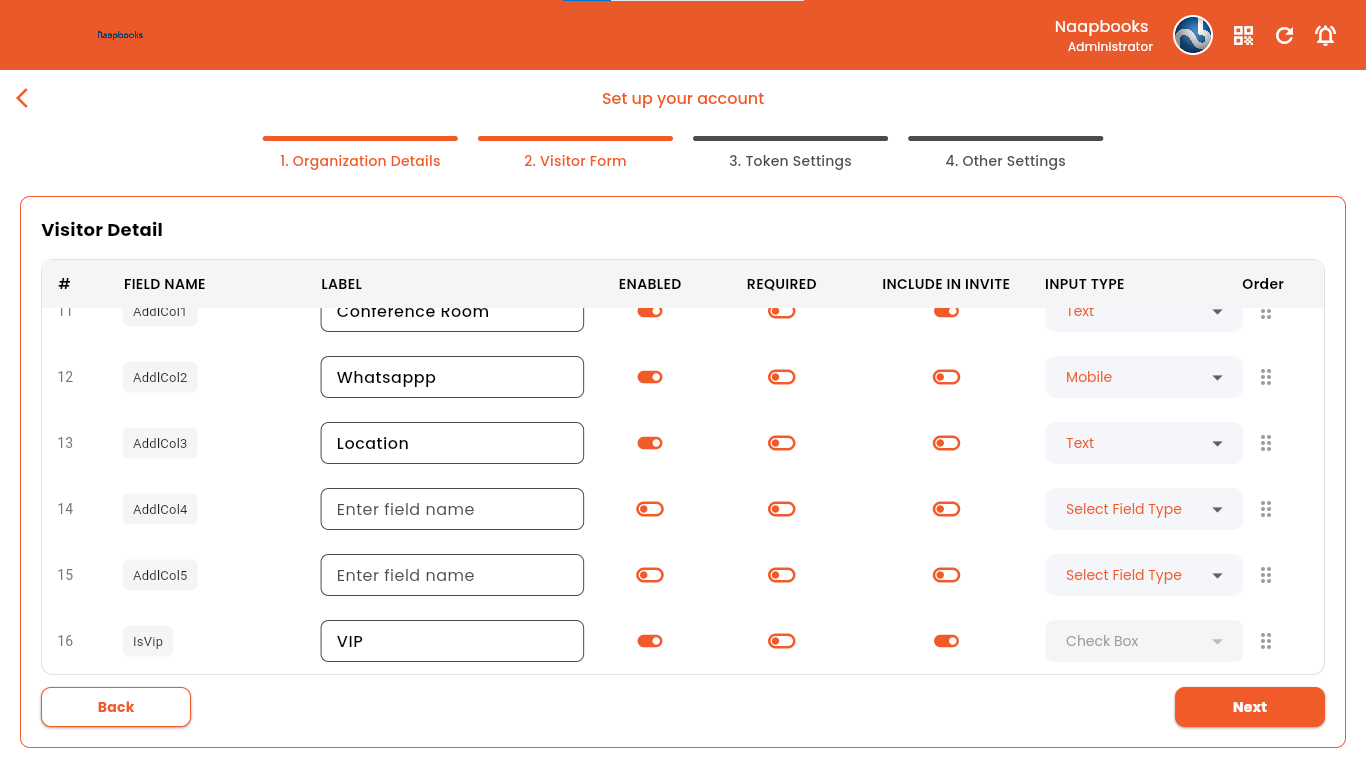
- Additional Column fields (AddlCol1 through AddlCol5) let you add up to five fields of your own, with any label and any input type, for anything specific to your site, such as a vehicle number or a parking zone. This is the same field the VizMan user manual already documents as "Additional Column" under Meeting Detail.
Step-by-Step: Apply the Update
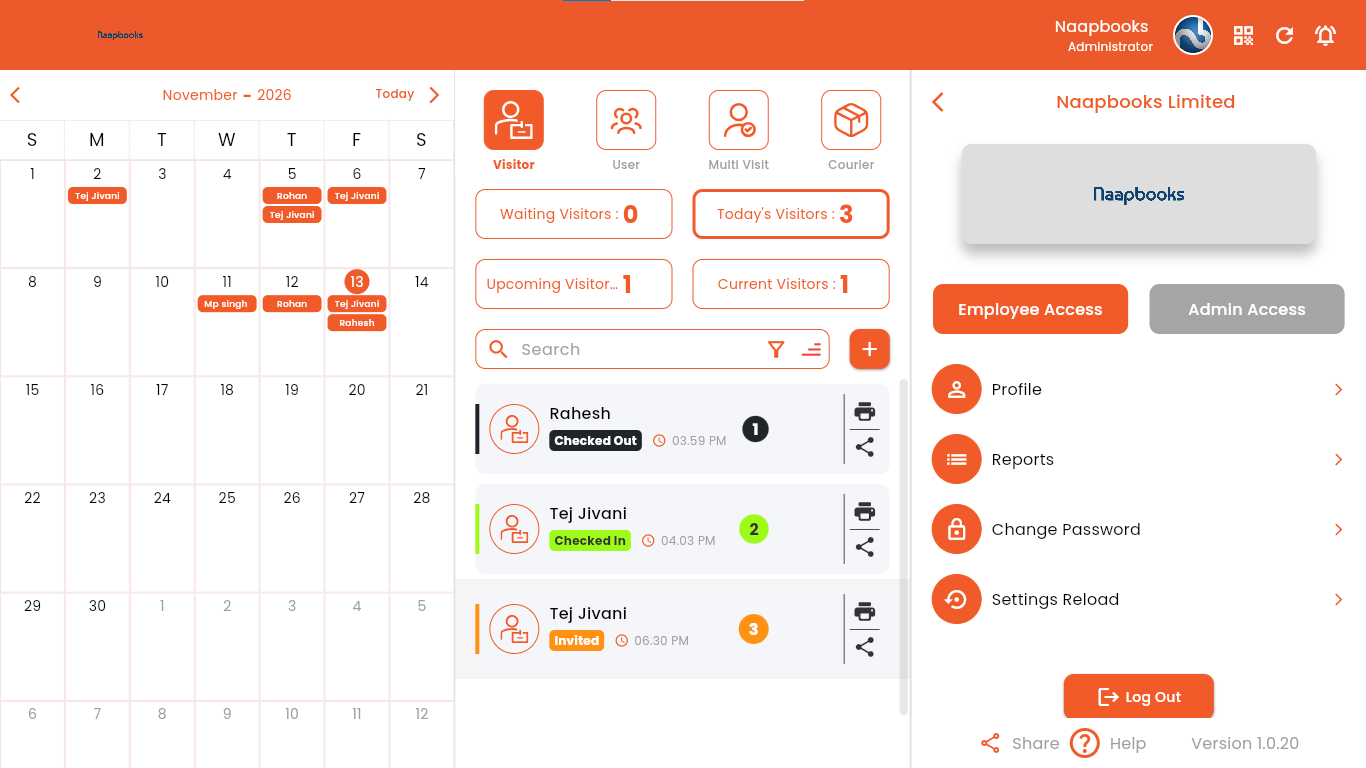
- Log in to your VizMan account with your registered Admin credentials.
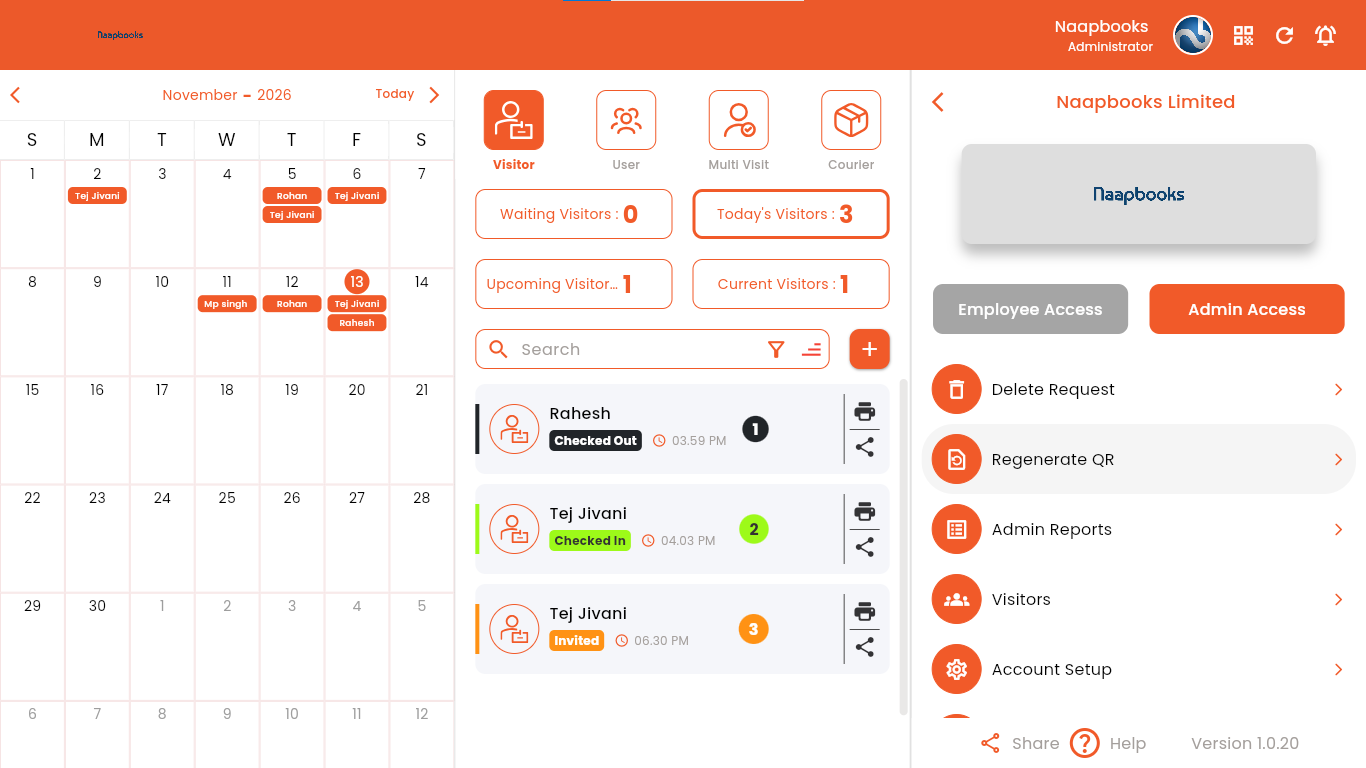
- Open Admin Access. Click your name in the top-right corner, then select Admin Access.
- Go to Account Setup. In the Admin Access menu, select Account Setup.
- Open the Visitor Form. On the Set Up Your Account screen, click 2. Visitor Form.
- Review, then save:
- Check every field's Enabled, Required, and Include in Invite settings.
- Leave a field's Label blank to disable any field you don't use.
- Confirm each field's Input Type is correct.
- For any Dropdown / Select field, including Purpose, add every option your visitors should be able to choose.
- Turn on Required for anything visitors must provide before they can submit the form.
- Reorder fields by dragging the handle on the right, keeping the fixed positions below in mind.
- Click Save to apply the update.
Fixed field positions (these can't be reordered):
- Invite-based check-ins: Full Name and Mobile Number stay first, in that order, by default.
- Direct (walk-in) visitors: Whom to Meet, Full Name, and Mobile Number stay first, in that order, by default.
FAQ
Do I have to change anything, or just save?
Opening Visitor Form and saving is enough to activate the patch. Changing fields is optional, and only needed if your form actually needs to change.
Can I reorder Full Name and Mobile Number?
No. For invited visitors, those two stay first. For walk-in (direct) visitors, Whom to Meet, Full Name, and Mobile Number stay first, in that order. Everything else on the form can be reordered freely.
What's an "Additional Column" field?
A custom field you define yourself. VizMan reserves five slots (AddlCol1 to AddlCol5). Give each one a label and an input type (Text, Dropdown, etc.) for anything specific to your site, such as a vehicle number or a parking zone.
What happens if a Dropdown field has no options?
Visitors can't select anything, so the form can't be submitted through that field. Add every option you want visitors to see before saving.
Will this affect visitors already checked in or invited?
No. The update only governs the Visitor Form configuration going forward. It doesn't touch existing check-ins or sent invites.
Need Help?
If the Visitor Form screen on your account doesn't match what's described here, or you run into an issue while saving, reach out to the VizMan support team with your organization name and a screenshot of what you're seeing, and they'll help you get the update applied.
VizMan versions: iOS 2.10.9+01 · Android 1.7.12+70 · Web (dashboard) 1.0.20+01. This update is applied from the web dashboard and doesn't require an app update. If your app is behind, update from the App Store or Play Store too.


